
An XML sitemap is a file that lists all the important pages on your website and tells search engines like Google where to find them. Without one, search engines have to discover your pages on their own by following links, which works fine for small sites, but gets unreliable fast as your site grows.
For larger sites with hundreds or thousands of pages, a well-structured sitemap means Google spends its crawl budget on the pages that actually matter, not wasting time on duplicates or low-value content.
In this guide we’ll cover what an XML sitemap is, the different types, the right format to use, best practices, and exactly how to create and submit one. XML sitemaps are also a key part of technical SEO, especially for larger websites where crawlability and indexation matter.
Table of Contents
Table of Contents
- What is an XML sitemap?
- Which websites need a sitemap?
- How to check if a website has an XML sitemap?
- What are the types of sitemaps?
- Why create an XML sitemap?
- What are the benefits of sitemap.xml for SEO?
- What information is included in a sitemap?
- How to create a sitemap?
- What to include in your sitemap.xml?
- Which pages should be included in sitemap.xml?
- Where should the Sitemap be placed?
- How to submit a sitemap.xml to Google?
- How do I update a sitemap.xml file?
- What are the sitemap best practices for SEO?
- What are the main problems related to sitemaps.xml?
What is an XML sitemap?
A sitemap.xml is a file that lists all the pages on your website in one place. Think of it as a map you hand directly to Google, instead of waiting for it to find your pages by following links, you’re telling it exactly where everything is.
There are two types: an XML sitemap for search engines, and an HTML sitemap for users. The XML version is the one that matters for SEO.
Which websites need a sitemap?
It is recommended that all websites have an XML sitemap to improve content indexing and discovery by search engines. Technically every website can benefit from a sitemap, but it becomes genuinely important in four situations.
- Large and complex websites: if you have hundreds or thousands of pages, Google has a crawl budget and won’t necessarily find everything on its own. A sitemap tells it which pages to prioritise.
- New websites: Google discovers pages by following links, and a brand new site has very few links pointing to it. A sitemap speeds up the initial indexing process considerably.
- Websites with frequently updated content: if you’re publishing new pages regularly, a sitemap signals those changes to Google faster than waiting for it to recrawl.
- Websites with hidden or hard-to-reach pages: if some pages are only accessible via JavaScript or have very few internal links pointing to them, they can get missed during a standard crawl. A sitemap acts as a safety net.
If your site is small, well-linked and rarely changes, a sitemap is still worth having, it just becomes less critical.
How to check if a website has an XML sitemap?
To check if a website has a sitemap, you can access the robots.txt file. The quickest way to check if a site has a sitemap is to go directly to the robots.txt file — just add /robots.txt to the end of any domain, like example.com/robots.txt. If there’s a sitemap, it’ll usually be referenced there with a line that starts with “Sitemap”.
You can also try going directly to these URLs, just swap out the domain for whichever site you’re checking:
- example.com/sitemap.xml
- example.com/sitemap.html
- example.com/sitemap_index.xml
Some sites use sitemap_index.xml instead of sitemap.xml
Google has a limit of 50,000 URLs per sitemap file. For a small site that’s never an issue, but once you start dealing with thousands of pages it becomes a problem.
The solution is to split everything into multiple sitemap files, one for articles, one for products, one for state pages, and then create a single index file that points to all of them: That’s the sitemap_index.xml.
Think of it like a folder. The index file is the folder, and the individual sitemaps are the files inside it.
So if you see sitemap_index.xml, it just means the site is large enough to need more than one sitemap file.
What are the types of sitemaps?
There are two types of sitemaps, and they serve very different audiences:
XML Sitemaps
An XML sitemap is just a text file written in XML format. Inside it, you’ll find a list of URLs from your site, and for each one you can include a few extra details, when the page was last updated, how often it changes, and how important it is relative to other pages.
The main audience for this file is search engines. Google and Bing read it to understand what’s on your site and decide what to crawl. Your regular site visitors will never see it, it’s purely a communication tool between your site and search engines.
Sitemaps HTML
An HTML sitemap is the user-facing version, it’s an actual page on the site, usually linked in the footer, that lists out all the main sections and pages in a readable format.
You can also check the site’s footer, some sites link to their sitemap there. Here’s an example from our own site:
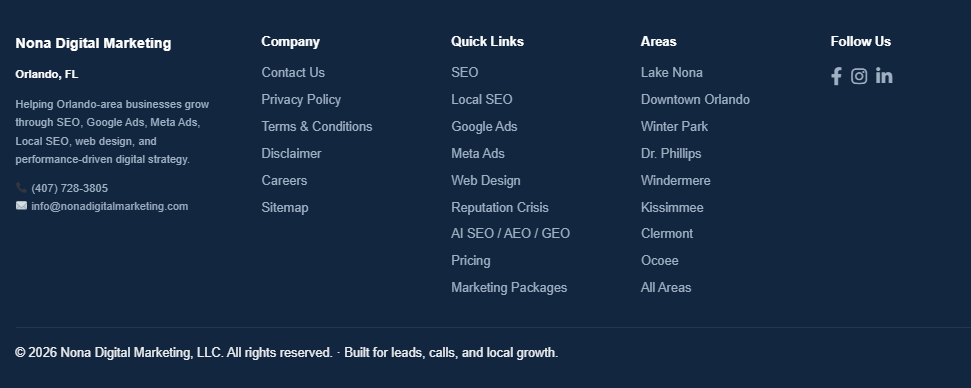
As you can see in the example above, the Sitemap link sits in the footer under the Company column, exactly where users and search engines expect to find it.
Unlike the XML version which is just for search engines, this one is built for real people. If someone lands on your site and can’t find what they’re looking for, a well-structured HTML sitemap gives them a quick overview of everything available.
For an HTML sitemap, you don’t always need to add every single URL from the website. An HTML sitemap should include the important pages users may want to find, such as main service pages, category pages, key blog posts, contact/about pages, and other useful landing pages.
They’re less common than they used to be, but for large sites with complex navigation they’re still worth having. For SEO, the XML sitemap is usually where you include the URLs you want search engines to crawl and index. The HTML sitemap is more for users and site navigation.
Why create an XML sitemap?
So why does a sitemap actually matter? Here’s what it does for your site in practice.
Making sure your important pages actually get indexed
Search engines find pages by following links. If a page has few or no links pointing to it, there’s a good chance it never gets crawled. A sitemap fixes that; you are explicitly telling Google which pages exist and which ones matter, so nothing important gets missed
Help search engines understand the site’s structure and index the content better.
A sitemap doesn’t just list URLs, it also gives search engines a sense of how your content is structured. Which pages are most important, how sections relate to each other, and what gets updated regularly. That context helps Google index your content more accurately and show the right pages for the right searches
It shows your site is well maintained
A sitemap that’s kept up-to-date, with new pages added promptly and removed pages taken out, signals to Google that the site is actively managed. It’s a small thing, but it’s part of the overall picture of a healthy, trustworthy site.
What are the benefits of sitemap.xml for SEO?
Using a sitemap offers several benefits for an SEO strategy. Here are some of the key benefits:
| Benefit | Explanation |
|---|---|
| Efficient indexing | An XML sitemap helps search engines discover and index your website’s main pages, reducing the chance that important content is missed. |
| Faster discovery of updated content | When you add, update, remove, or redirect pages, your sitemap helps search engines identify those changes more efficiently. |
| Better understanding of site structure | A sitemap gives search engines a clearer view of how your website is organized and how key pages are connected. |
| Prioritization of important pages | By including only your most important, indexable URLs, you help search engines focus on the pages that matter most for SEO. |
| Easier error detection | A sitemap can help identify crawling or indexing issues when analyzed through tools like Google Search Console or SEO auditing platforms. |
| Integration with SEO tools | Many SEO tools use sitemap data to monitor indexing, crawlability, errors, and overall website performance. |
What information is included in a sitemap?
A sitemap.xml file is made up of a few simple elements. Most of them are optional — the only one you actually need is the URL itself. The rest just give search engines extra context about each page.
Here’s what each element does:
<loc>
The element stands for “Location.” It indicates the specific URL of a page on the website. The URL of the page. This is the only required element, every URL in your sitemap needs on.
<lastmod>
The date the page was last updated. Search engines use this to decide whether they need to recrawl a page or if nothing has changed since their last visit
<changefreq>
How often the page is expected to change. You can set this to always, hourly, daily, weekly, monthly, yearly or never. Worth knowing, Google doesn’t follow this value strictly, it uses it as a rough guide at best.
<priority>
How important this page is relative to others on your site, on a scale from 0.0 to 1.0. A value of 1.0 means highest priority. One thing to be clear about, this doesn’t affect your ranking in search results, it just helps Google decide which pages to crawl first when it visits your site.
create-a-sitemap”>How to create a sitemap?There are a few ways to create a sitemap depending on how your site is built:
Let your CMS do it automatically
Most content management systems can generate a sitemap for you. WordPress, Shopify, Wix and others either include this by default or have plugins that handle it. On WordPress, Yoast SEO and Rank Math are the most common options, install either one and the sitemap gets created and updated automatically every time you add or remove a page. This is the easiest approach for most sites.
Use an online sitemap generator
If your site is small and you don’t use a CMS, an online sitemap generator is the quickest option. You enter your URL, the tool crawls your site and spits out a sitemap file you can upload directly to your root directory. Screaming Frog, Sitebulb and XML-Sitemaps.com all do this well.
Create a sitemap manually
For very small sites with a handful of pages, you can write the XML file yourself in any text editor. It’s straightforward, you just list each URL with the relevant elements. That said, manual sitemaps become a maintenance headache fast. The moment you start adding pages regularly and forgetting to update the file, it starts working against you. For anything beyond a small static site, use one of the other two methods.
For sitemaps with dozens of URLs, generate a sitemap automatically
If your site has too many pages to manage manually, there are tools that will crawl your site and generate the sitemap for you. Here are some of the most commonly used ones:
- Yoast SEO
- Google XML Sitemaps
- Screaming Frog
- Online XML Sitemap Generator
- XML-Sitemaps.com
- Slickplan Sitemap Builder
- Inspyder Sitemap Creator
- Dyno Mapper
- Sitebulb
- JetOctopus
- SE Ranking Sitemap Generator
- Rank Math SEO
- All in One SEO
- A1 Sitemap Generator
- WriteMaps
- Octopus.do
- FlowMapp
- PowerMapper
- VisualSitemaps
- Sitechecker Sitemap Generator
These tools typically crawl your website, identify all pages, and generate a complete XML sitemap containing the necessary elements.
Need expert SEO consulting for your website?
Get expert SEO consulting to improve rankings, traffic, and long-term visibility.
What to include in your sitemap.xml?
As a rule, include any page you want Google to index. That typically means your homepage, product and service pages, category pages, blog posts, guides and contact pages. Policy pages like your privacy policy and terms of service are worth including too.
What to leave out
duplicate pages, paginated pages, pages with noindex tags, login pages and anything with thin or duplicate content. Including low-quality pages in your sitemap wastes crawl budget and can actually work against you.
Where to put it
The sitemap.xml file should sit in the root directory of your site, so example.com/sitemap.xml. That’s where search engines expect to find it.
Once it’s there, add a reference to it in your robots.txt file so search engines can find it immediately:
Sitemap: https://www.example.com/sitemap.xml
Simple line, but worth doing, it removes any guesswork about where your sitemap lives.
Which pages should be included in sitemap.xml?
All important pages on your website should be included in sitemap.xml. See some examples below:
- Main pages: All of your website’s core pages, such as the homepage, product/service pages, category pages, blog pages, etc.;
- Content pages: Include all relevant content pages, such as articles, blog posts, guides, tutorials, and other informational resources;
- Product/Service pages: If your website features products or services, ensure that you include the detail pages for these products or services in the sitemap;
- Contact pages: Contact pages, contact forms, or other important communication pages should be included to facilitate contact with site visitors;
- Policy pages: Important policy pages, such as your privacy policy, terms of service, and return policies, should be present in the sitemap.
Where should the Sitemap be placed?
Your sitemap.xml should live at the root of your domain (example.com/sitemap.xml). That’s where search engines look for it by default.
Then add this line to your robots.txt file:
Sitemap: https://www.example.com/sitemap.xml
That way search engines find it immediately without having to guess.
How to submit a sitemap.xml to Google?
The simplest way is through Google Search Console:
Submit a Sitemap in Search Console
- Access Google Search Console and sign in;
- Select your property
- Click Sitemaps in the left menu
- Enter your sitemap URL and hit Submit
That’s it. Google will start processing it and you’ll be able to see any errors directly in Search Console.
Use the Search Console API
If you’re managing multiple sites or want to automate the process, you can submit sitemaps programmatically via the Search Console API. This is really only relevant if you’re a developer or working at scale, for most sites, doing it manually through the interface is perfectly fine.
Use the Ping Tool
Google has a simple ping URL you can use to notify them when your sitemap is updated. Just visit this URL in your browser, replacing the placeholder with your actual sitemap URL:
https://www.google.com/ping?sitemap=https://www.example.com/sitemap.xml
That’s it. No login needed, no setup, just a quick way to tell Google your sitemap has changed.
How do I update a sitemap.xml file?
If you’re using a CMS with a plugin like Yoast or Rank Math, your sitemap updates automatically whenever you publish or remove a page, you don’t need to do anything.
If you built your sitemap manually, you’ll need to open the file, make the changes, adding new URLs, removing old ones, updating the lastmod dates, save it, and re-upload it to your server.
Once updated, submit it again in Google Search Console or use the ping tool to let Google know something has changed. Then keep an eye on Search Console over the next few days to make sure the new pages are getting picked up and there are no errors.
The main thing to remember is that an outdated sitemap is almost worse than no sitemap, if it’s pointing to pages that no longer exist or missing pages that are important, it’s sending Google in the wrong direction.
What are the sitemap best practices for SEO?
If your site has thousands of pages or very different types of content, split your sitemap into separate files rather than cramming everything into one. For example:
Split your sitemap
If your website has a large number of pages or different content sections, it is recommended to split your sitemap into multiple smaller sitemaps.
For example, you can create separate sitemaps for:
- Blog posts
- Product pages
- Categories
- Images
- Videos
- News articles
It’s easier to manage and easier for Google to process. Then use a sitemap index file to point to all of them from one place.
Create an index
If you have multiple sitemap files, create a sitemap index, a single file that lists all of them. Instead of submitting each sitemap separately in Search Console, you just submit the index file, and Google finds everything from there.
For large sites with different content types, this is the cleanest way to keep things organized.
Respect sitemap size limits
Each XML sitemap should contain no more than 50,000 URLs and should not exceed 50MB uncompressed.
If your website exceeds these limits, you should split your sitemap into multiple files and use a sitemap index. These limits are defined by Google and the official Sitemaps protocol.
Canonical URLs
Only include canonical URLs in your sitemap. A canonical URL is the preferred version of a page that you want search engines to index.
Avoid including duplicate URLs, parameter-based URLs, redirected URLs, or alternate versions of the same page unless they are intentionally meant to be indexed.
Include only indexable pages
Your sitemap should only include pages that you want search engines to crawl and index.
Avoid adding URLs that are:
- Blocked by
robots.txt - Marked with
noindex - Redirected
- Broken or returning 404 errors
- Duplicate or low-value pages
- Internal search result pages
- Login, cart, checkout, or account pages
Keep your sitemap updated
Your sitemap should be updated whenever important pages are added, removed, or changed.
For dynamic websites, blogs, ecommerce stores, and news websites, it is best to generate sitemaps automatically through your CMS, SEO plugin, or sitemap generator.
Add your sitemap to robots.txt
You can help search engines discover your sitemap by adding it to your robots.txt file.
Submit your sitemap to search engines
After creating your sitemap, submit it through tools such as:
- Google Search Console
- Bing Webmaster Tools
This helps search engines discover your sitemap faster and allows you to monitor indexing issues.
Use HTTPS URLs
If your website uses HTTPS, make sure all sitemap URLs also use HTTPS.
Avoid mixing HTTP and HTTPS versions, as this can create duplicate content issues and confuse search engines about the preferred version of your pages.
Avoid Redirects and Errors
Every URL in your sitemap should return a valid 200 OK status code.
Do not include URLs that redirect, return 404 errors, are blocked, or require authentication. A clean sitemap helps search engines trust and process your website structure more effectively.
Keep the Sitemap Clean and Focused
A sitemap is not a place to list every possible URL on your website. It should include your most important, indexable, canonical pages.
What are the main problems related to sitemaps.xml?
Sitemaps.xml files can present several common issues that may affect your website’s indexing and visibility in search engines. Some of the main problems related to sitemaps.xml include:
- Formatting errors: If the XML isn’t structured correctly, with missing tags, typos, or wrong syntax, search engines can’t read the file at all. Always validate your sitemap using Google Search Console or an XML validator before submitting it.
- Outdated sitemap: A sitemap that hasn’t been updated in months can point to pages that no longer exist or miss pages that were recently published. Google will still crawl what’s in the file, so if it’s wrong, you’re wasting crawl budget.
- Incorrect or non-indexable URLs: Including pages you shouldn’t, noindex pages, redirect chains, duplicate pages, and low-quality content have no place in a sitemap. Including them tells Google these pages matter — which is the opposite of what you want.
- Overly large or fragmented sitemap: Sitemap too large Google’s limit is 50,000 URLs or 50MB per file. If you’re hitting that, split into multiple sitemaps and use a sitemap index file to tie them together.
- Lack of alignment with actual site content: Sitemap doesn’t match the actual site If your sitemap lists pages that redirect or return errors, Google loses trust in the file over time. Keep it clean, only include pages that are live, indexable and return a 200 status code.”*
Ready to Improve Your SEO?
A sitemap is one of those things that takes an hour to set up properly and then just runs in the background, but getting it wrong can quietly hold back your indexing for months without you realizing it.
Keep it clean, keep it updated, and make sure it only includes pages you actually want Google to crawl. Do that and it’ll do its job.
If you’d like help with your overall SEO strategy, check out our SEO consulting service, or get in touch and we’ll take a look at what your site needs.
Need help fixing sitemap, indexing, or technical SEO issues?
Grow your visibility with SEO services designed around your business goals.